Order Builder - Standard Product Selection & Ordering
Selecting a Product to Order
Standard Pizzas
-
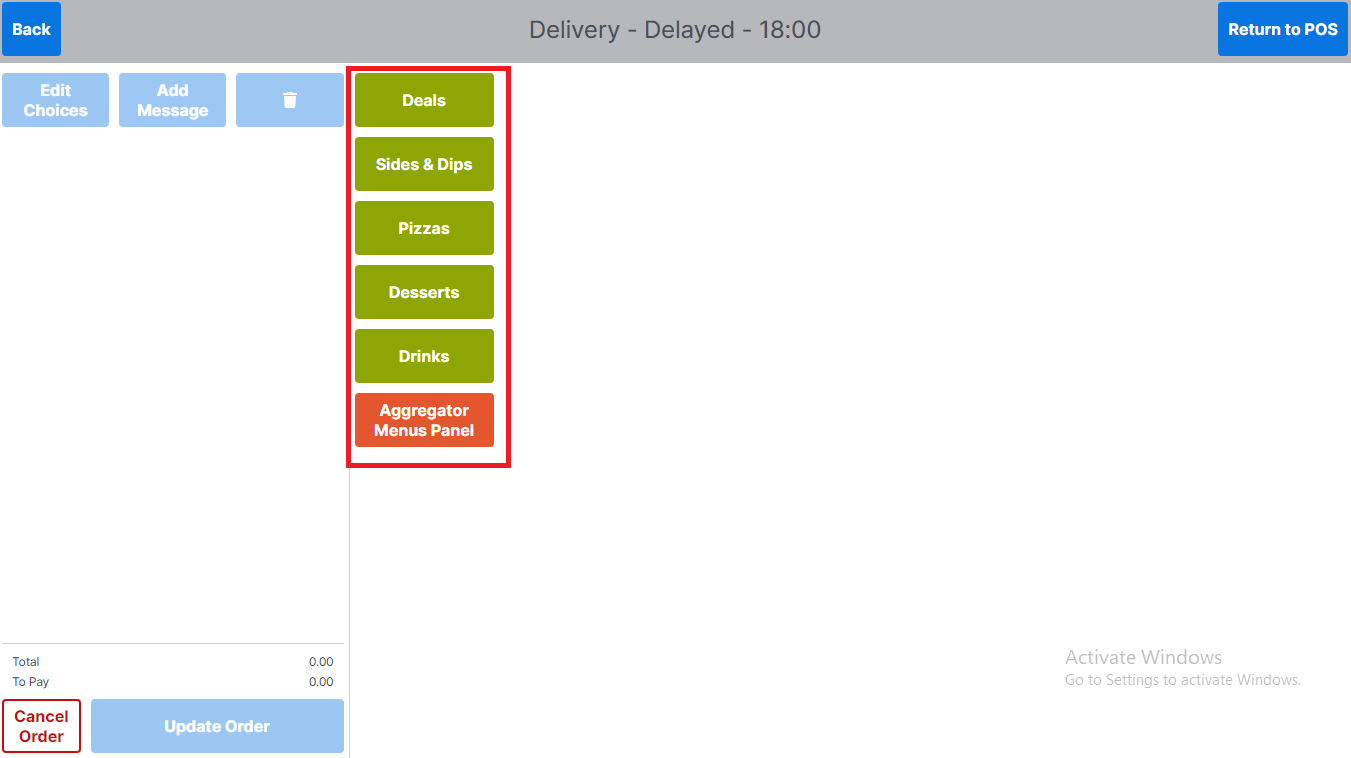
Select the required product group
-
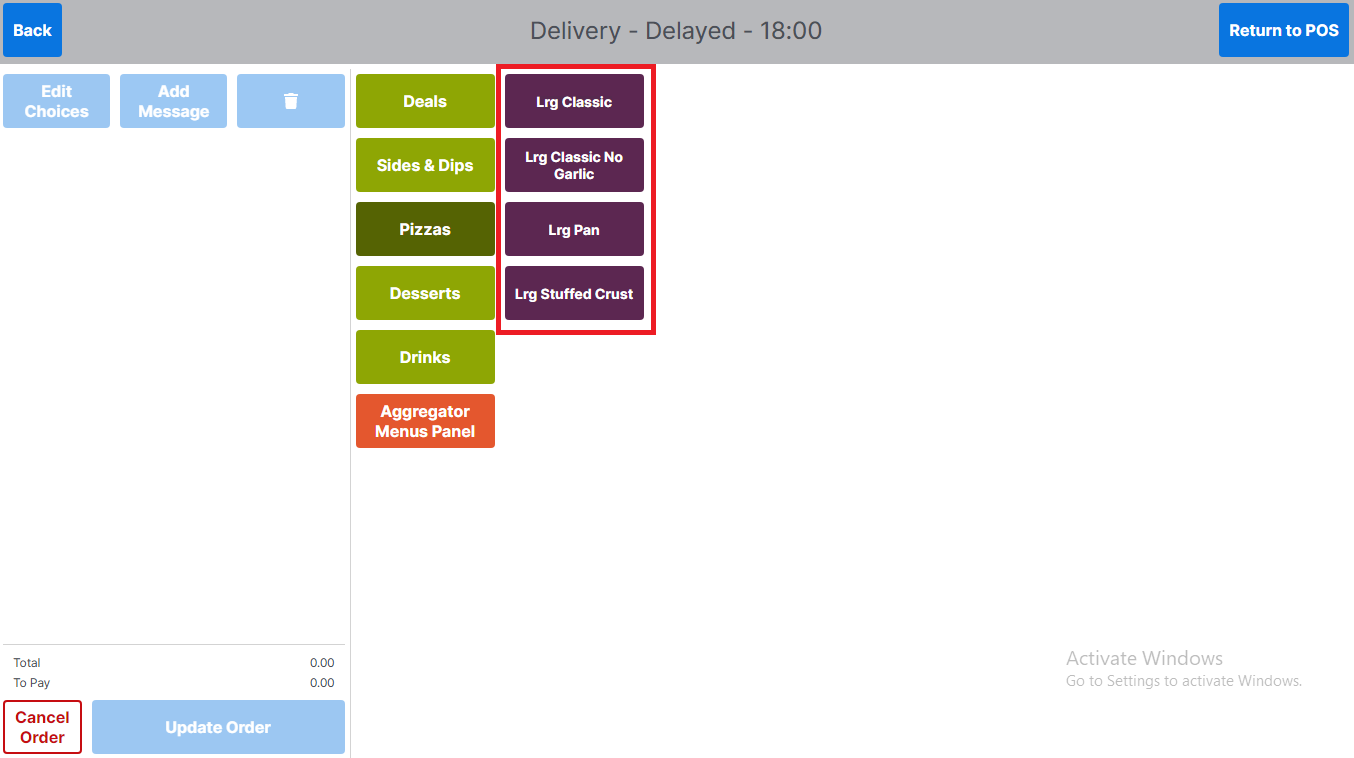
If required select the sub product group displayed
-
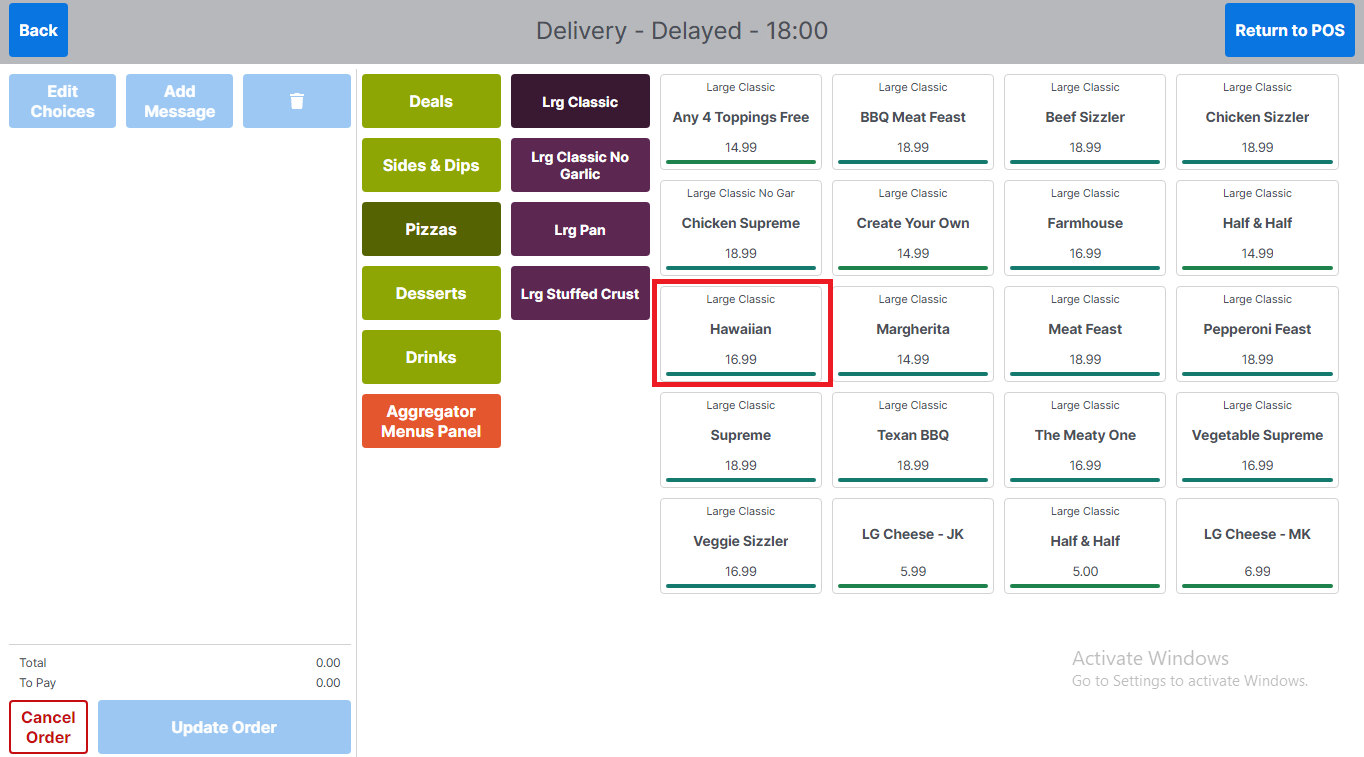
Product items are displayed on the right of the screen with their name and price, select the required product to order
Standard Pizzas - Default Toppings
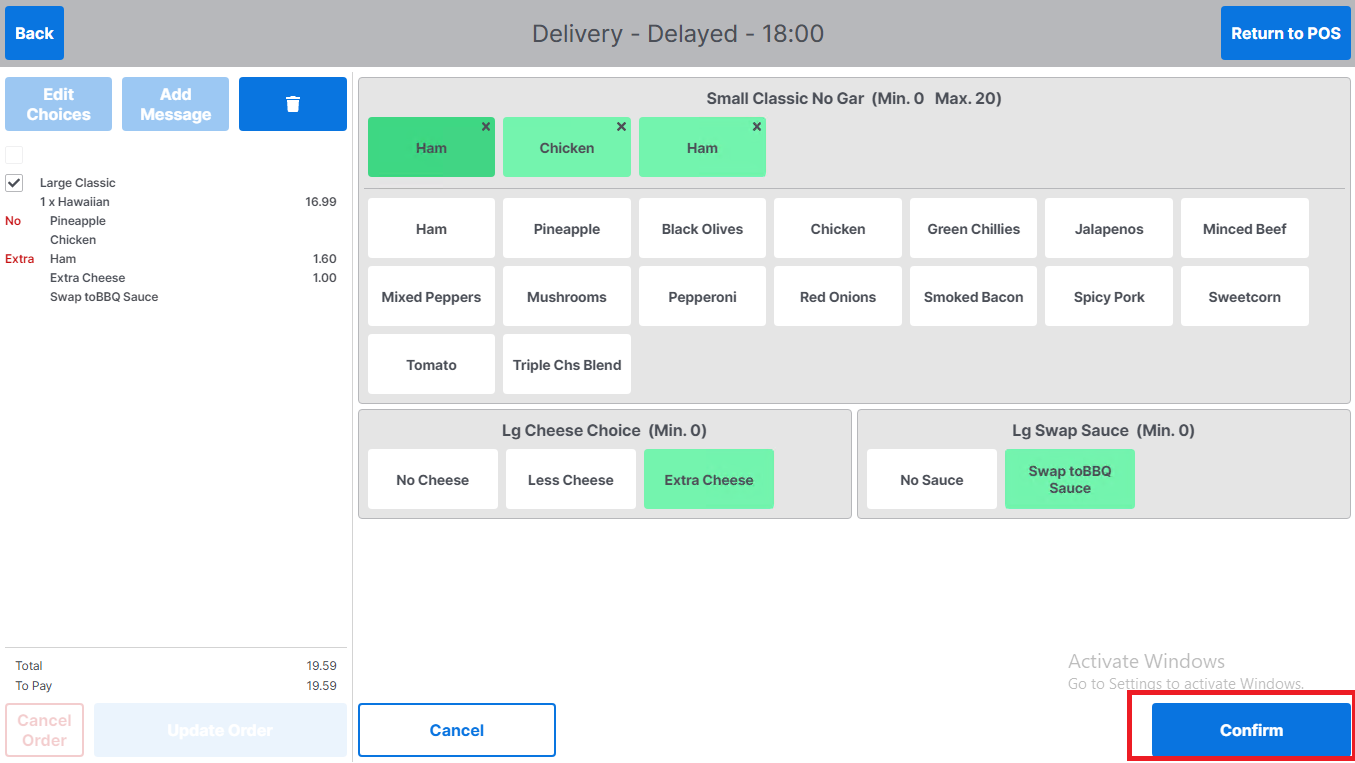
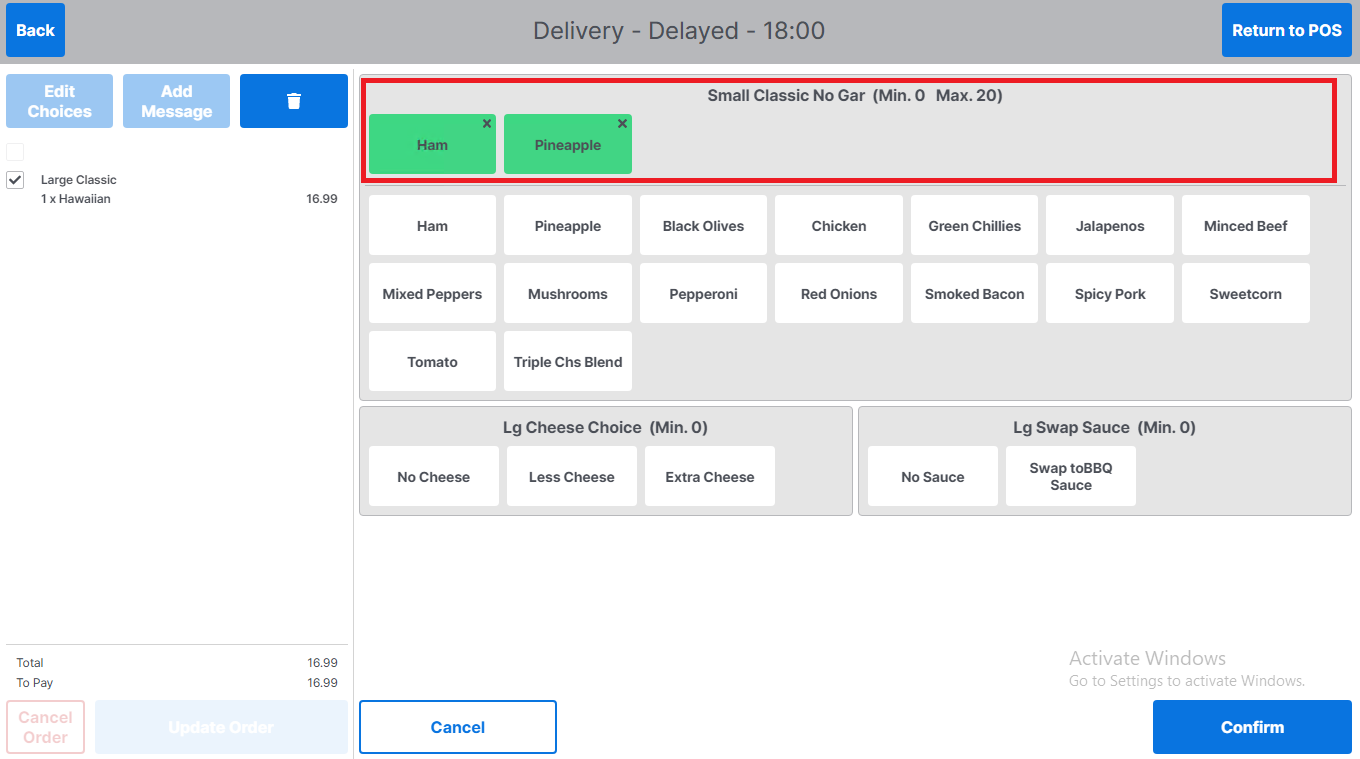
Any default toppings will be shown in the top section of pizza toppings screen (toppings selected)
-
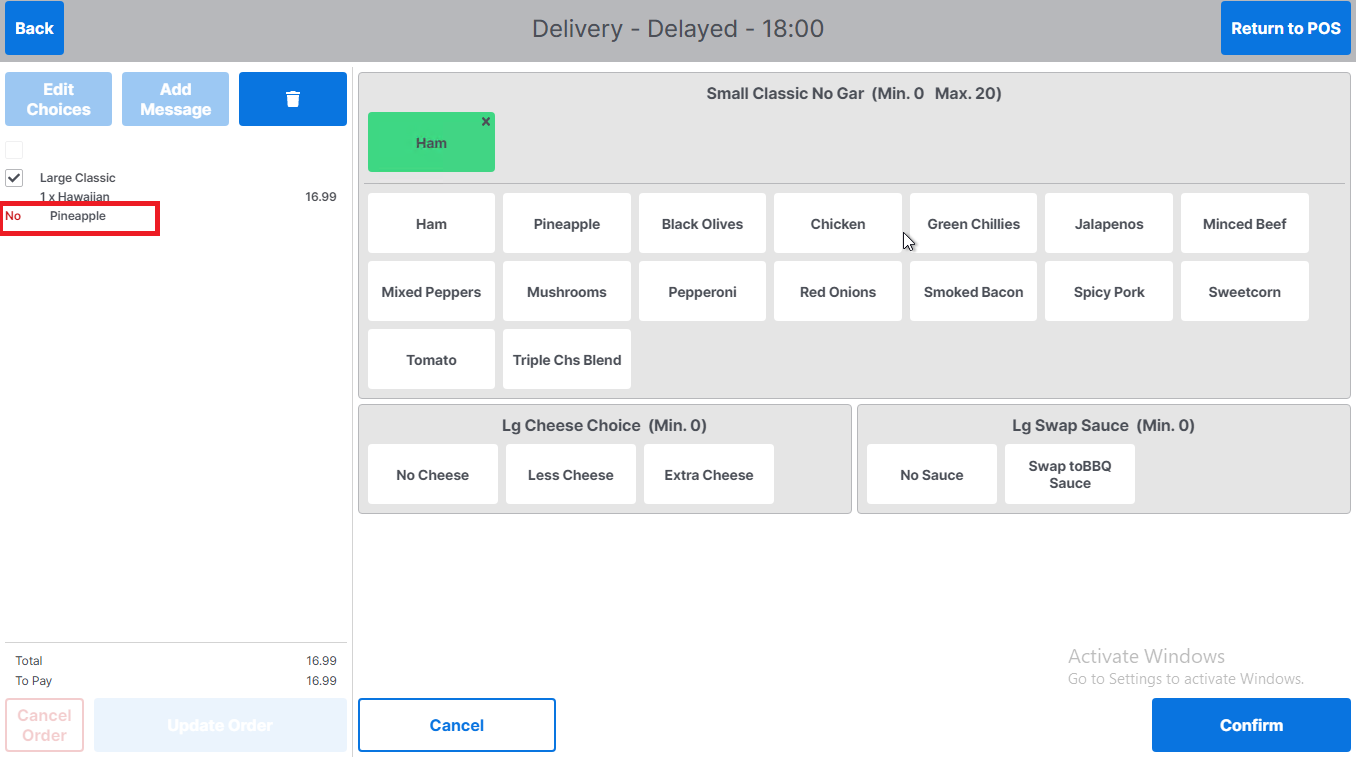
To remove a default topping, tap the topping to be remove, which will automatically remove it
-
This will be updated and displayed in the order panel on the left-hand side of screen
Standard Pizzas - Additional Toppings
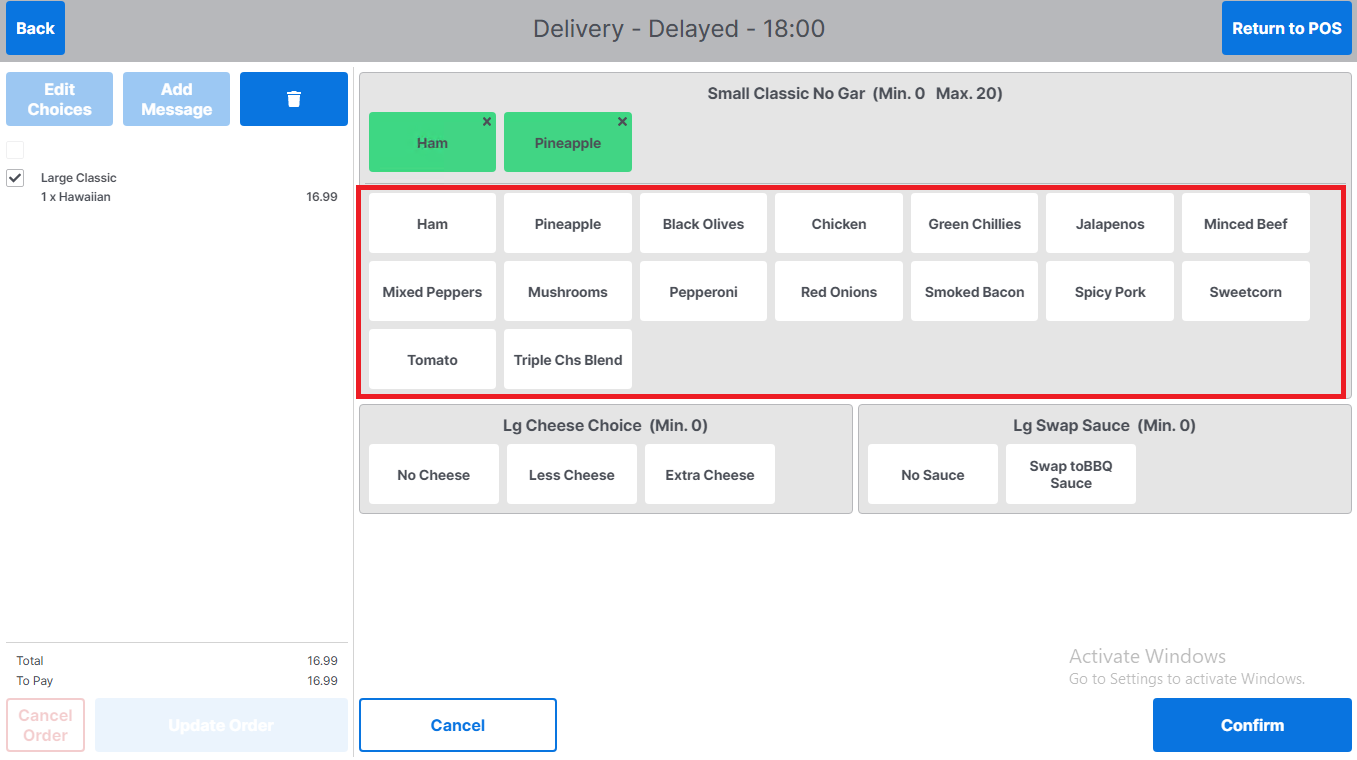
Additional topping choices will be shown in the middle section of the pizza toppings screen
-
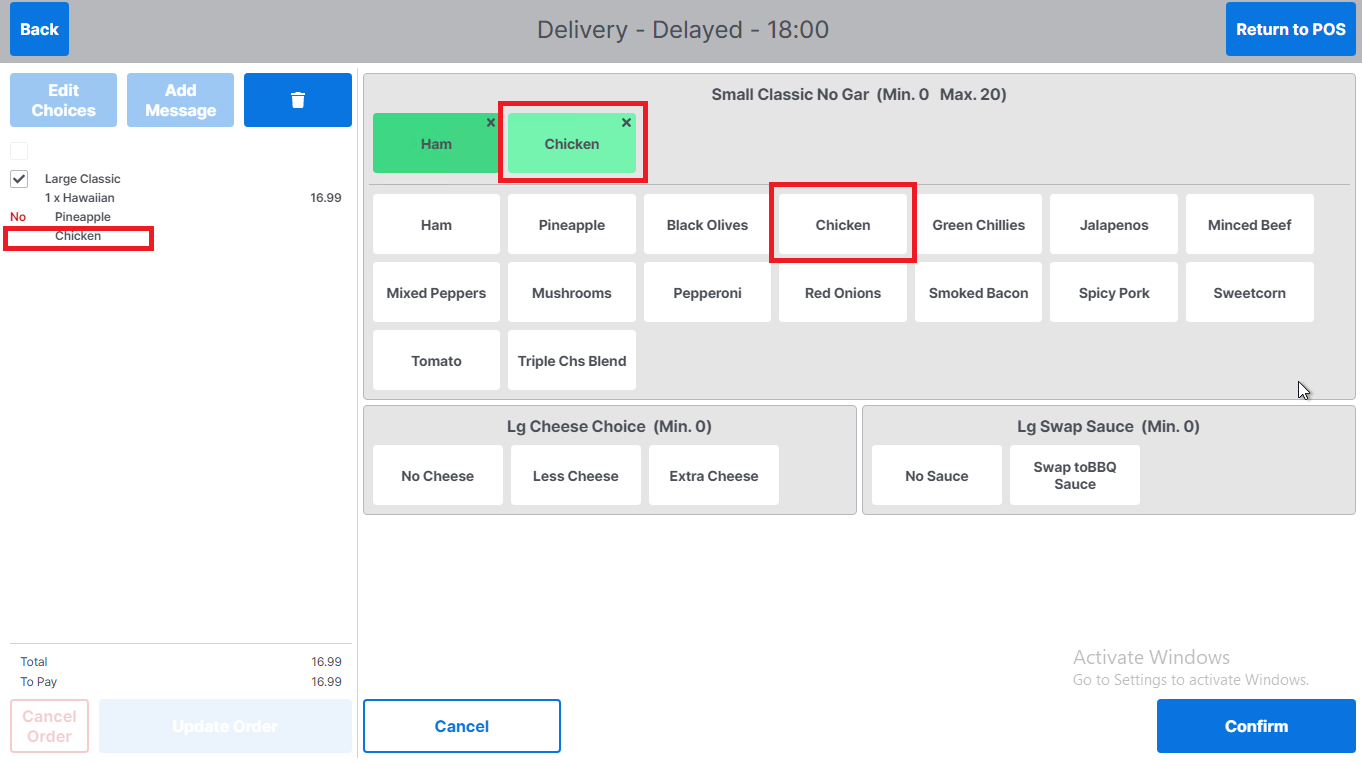
To add an extra topping tap the topping to be added to the pizza
-
The selection will automatically be added to the topping selection area
-
The additional topping will be updated in the order panel
-
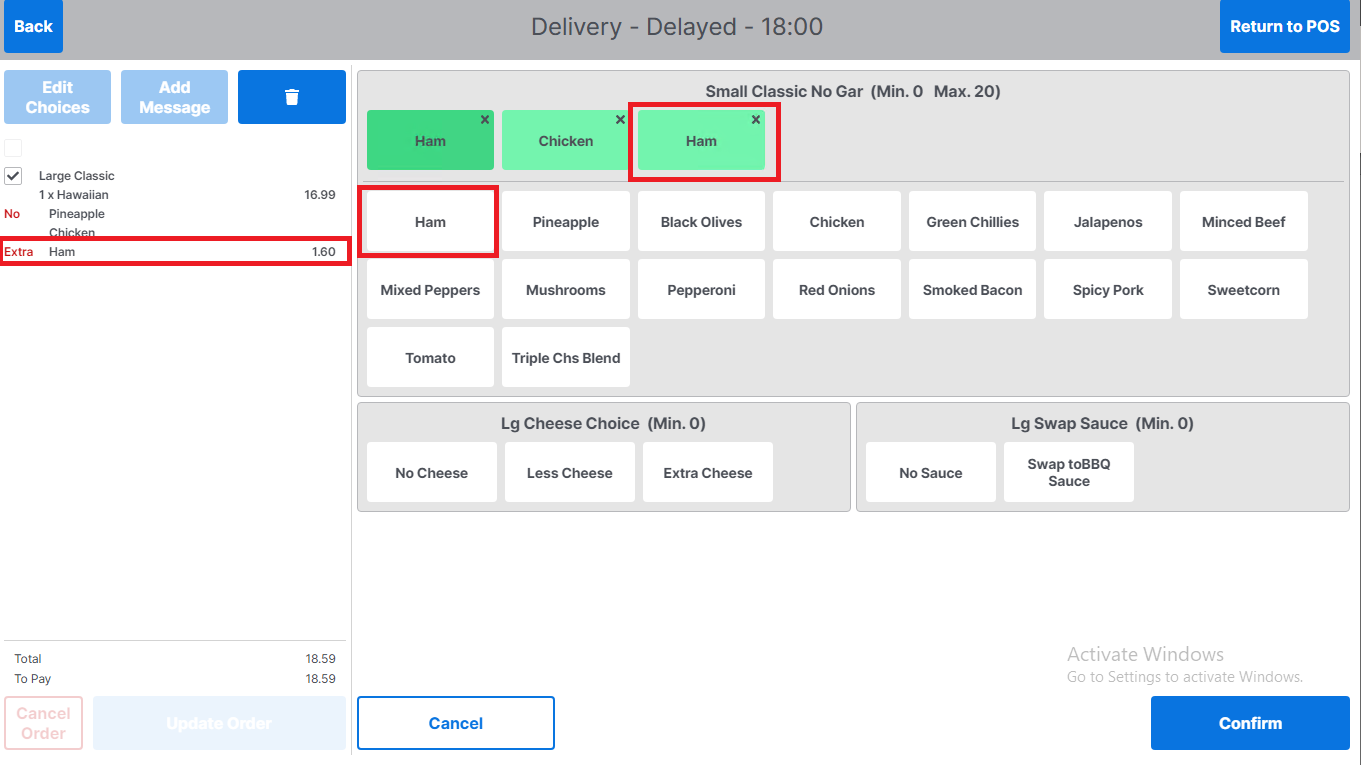
To add an extra topping that has already been added for example 'extra ham' tap the product from the topping selections area
-
The extra topping will automatically be added to the selected toppings area
The extra topping will be updated in the order panel
-
Standard Pizzas - Additional Choice Selections
-
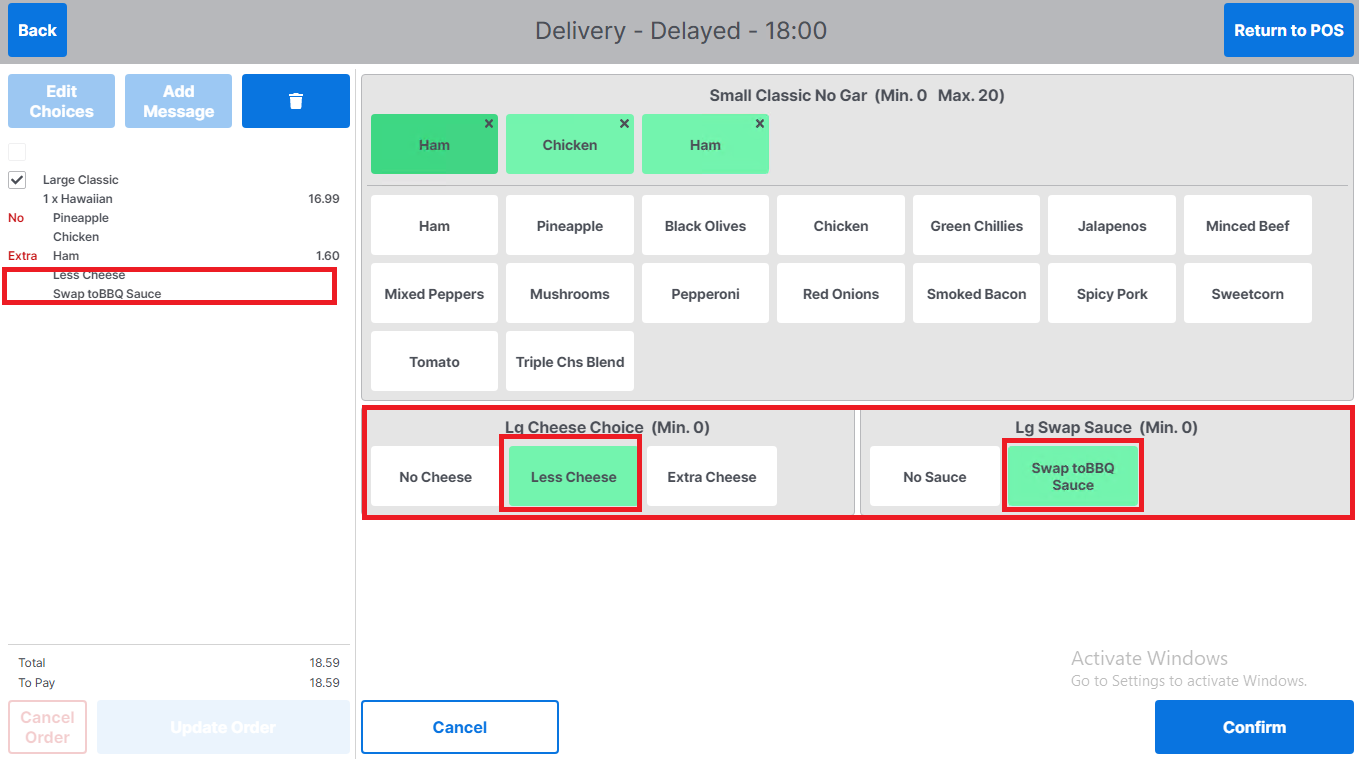
Select any additional choice selections for example 'less cheese' and swap to 'BBQ sauce'
-
As these choices can only have one option, when selected they do not get added to the topping selection but are highlighted to show they are selected
-
They are automatically updated in the order panel when selected
-
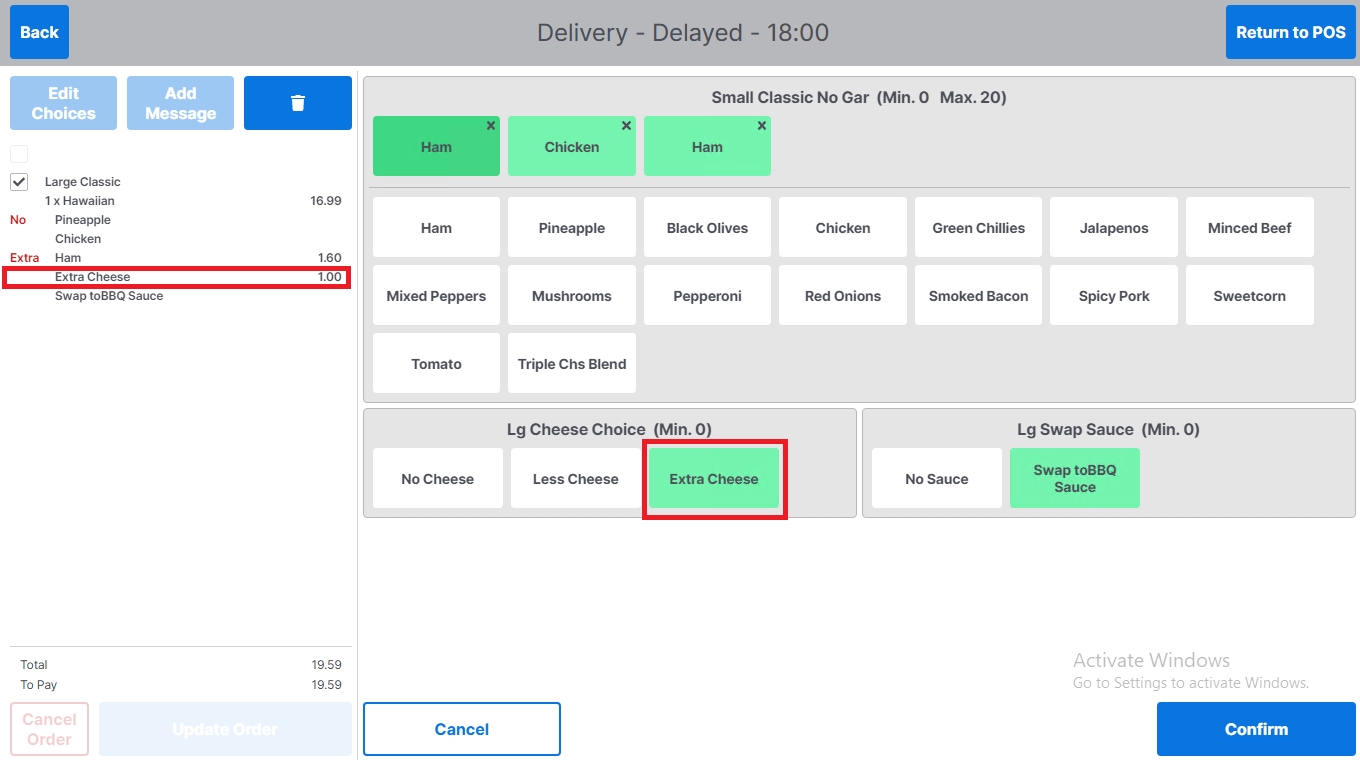
To change an additional choice selection, for example, changing from 'less cheese' to 'extra cheese', select extra cheese
-
Extra cheese will now be highlighted
-
-
The basket is updated to reflect Extra cheese selection
Standard Pizzas - Confirming Choice Selection
-
Select Confirm to complete choice selection for that product